
On this page
A Unity release that depends on one machine is fragile. Tests run only when someone remembers to open the Test Runner, the Android build uses whatever Player Settings were last saved on that laptop, and the signing keystore lives in one person's Downloads folder. When that person goes on holiday, the release goes on holiday too.
CI/CD (continuous integration and continuous delivery) is the cure: a server checks and builds every change the same way, every time, without needing anyone's laptop or memory. This post sets up two GitHub Actions workflows with GameCI. The first runs your EditMode and PlayMode tests on every pull request. The second builds a signed Android App Bundle whenever you push a version tag. Both restore Unity's Library folder from a cache, which only works when the cache is seeded from the right branch, so that part gets its own section.
Written against Unity 6000.0 LTS, game-ci/unity-test-runner@v4, game-ci/unity-builder@v6 and the GitHub Actions documentation as of October 2026.
How Unity runs on a CI runner
A GitHub-hosted runner is a fresh virtual machine with no display and no Unity installation: a very fast computer with no memory of yesterday. Unity covers the first gap itself. With the Editor command line arguments, -batchmode runs commands without human interaction, -nographics skips initializing the graphics device, and -quit closes the Editor when the commands finish.
GameCI covers the second gap. Its actions run Unity inside Docker images built for CI, mount your repository into the container and pass those arguments for you. By default they pick the Editor version from ProjectSettings/ProjectVersion.txt, so that file must be committed.
Running time is the main cost. Standard GitHub-hosted runners are free for public repositories. Private repositories draw from the plan's quota, which is 2,000 minutes per month on GitHub Free. Unity jobs are long, so the caching section below matters most for private projects. Paying for minutes of texture re-imports is nobody's favorite line item.
Activating a Unity license in CI
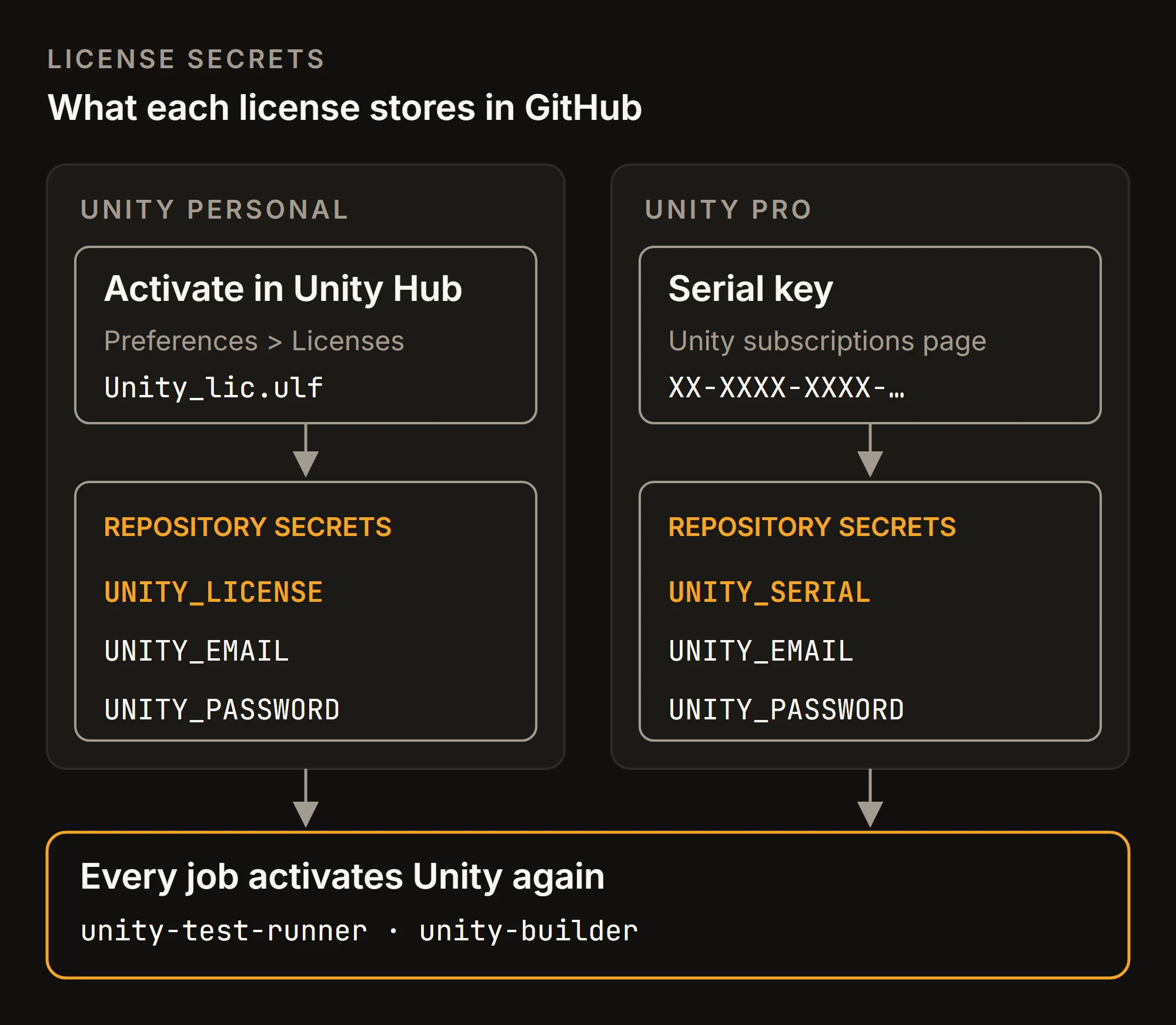
Every job starts on a clean machine, so Unity has to be activated in every job. Think of it as introducing yourself to the same receptionist every morning. The GameCI actions do this from repository secrets. What you store depends on your license.
Unity Personal cannot use the old manual activation flow, where you upload an .alf request file and get an .ulf license back. Unity's manual says that flow doesn't support Unity Personal and sends Personal users to the Unity Hub. GameCI's activation guide follows that route. Sign in to Unity Hub with the account CI will use, add a free Personal license under Preferences > Licenses, and finish the steps. Hub then writes the license file to one of these paths:
Windows: C:\ProgramData\Unity\Unity_lic.ulf
macOS:   /Library/Application Support/Unity/Unity_lic.ulf
Linux:   ~/.local/share/unity3d/Unity/Unity_lic.ulf
The file is not tied to an operating system, so a license activated on Windows works on an Ubuntu runner. Under Settings > Secrets and variables > Actions, create three secrets:
UNITY_LICENSE: the full contents of the.ulffileUNITY_EMAIL: the Unity account emailUNITY_PASSWORD: the Unity account password
The actions need the email and password to reactivate the license in each job. GameCI's builder docs note issues with special characters in UNITY_PASSWORD and recommend a password of letters and digits only. Save the creative punctuation for somewhere else.
Unity Pro uses a serial key instead of the license file. Store UNITY_SERIAL (from the Unity subscriptions page) together with UNITY_EMAIL and UNITY_PASSWORD, and skip the Personal steps entirely.
Running tests on every pull request
This workflow runs the GameCI test runner on pull requests to main and on pushes to main. It checks out the repository, runs the tests and keeps the results, so "works on my machine" finally has a second opinion:
name: Tests
on:
  pull_request:
    branches: [main]
  push:
    branches: [main]
jobs:
  unity-tests:
    runs-on: ubuntu-latest
    permissions:
      contents: read
      checks: write
    steps:
      - uses: actions/checkout@v7
        with:
          lfs: true
      - uses: game-ci/unity-test-runner@v4
        env:
          UNITY_LICENSE: ${{ secrets.UNITY_LICENSE }}
          UNITY_EMAIL: ${{ secrets.UNITY_EMAIL }}
          UNITY_PASSWORD: ${{ secrets.UNITY_PASSWORD }}
        with:
          githubToken: ${{ secrets.GITHUB_TOKEN }}
      - uses: actions/upload-artifact@v7
        if: always()
        with:
          name: Test results
          path: artifacts
Save it as .github/workflows/tests.yml. Five details matter:
- Test modes.
testModedefaults toall, which runs EditMode and PlayMode tests. Standalone tests run only when you ask for them. - Results on the pull request. GameCI recommends passing
githubToken, and with it the action creates a check run named "Test Results" that shows the results on the pull request. Creating a check run needs thechecks: writepermission. GameCI's docs grant it by switching the repository's default workflow permissions to read and write. Thepermissionsblock above grants the same right to this job only. Pull requests from forks get a read-only token, and GameCI notes they may need a personal access token instead. - Results after a failure.
if: always()uploads theartifactsfolder even when tests fail, which is exactly when you want the logs. - Git LFS.
actions/checkoutdoes not download Git LFS files by default. Withoutlfs: true, a project that stores textures or audio in LFS gets small pointer files instead of real assets. - Push trigger. The
pushtrigger onmainis there for the cache, as explained below.
Building a signed Android App Bundle
Store the keystore as secrets
A release build needs your upload keystore, the file that proves to Google Play that an update really comes from you. Never commit it: anyone with the file and its passwords can sign builds as you. Store it in a secret as base64 text instead. On Windows PowerShell, this copies the encoded keystore to the clipboard:
[Convert]::ToBase64String([IO.File]::ReadAllBytes("user.keystore")) | Set-ClipboardOn macOS or Linux, use base64 user.keystore, the command GameCI's docs show. Paste the output into a secret named ANDROID_KEYSTORE_BASE64, and add three more: ANDROID_KEYSTORE_PASS, ANDROID_KEYALIAS_NAME and ANDROID_KEYALIAS_PASS. Then enable Custom Keystore in the Android Player settings and commit that change. Without it, GameCI's builder does not apply the keystore options.
The release workflow
This workflow runs when you push a tag that starts with v, such as v1.4. You can also start it by hand from the Actions tab, which the cache section relies on:
name: Android release
on:
  push:
    tags: ['v*']
  workflow_dispatch: {}
jobs:
  android:
    runs-on: ubuntu-latest
    steps:
      - uses: actions/checkout@v7
        with:
          fetch-depth: 0
          lfs: true
      - uses: jlumbroso/free-disk-space@v2
      - uses: game-ci/unity-builder@v6
        env:
          UNITY_LICENSE: ${{ secrets.UNITY_LICENSE }}
          UNITY_EMAIL: ${{ secrets.UNITY_EMAIL }}
          UNITY_PASSWORD: ${{ secrets.UNITY_PASSWORD }}
        with:
          targetPlatform: Android
          androidExportType: androidAppBundle
          androidKeystoreName: user.keystore
          androidKeystoreBase64: ${{ secrets.ANDROID_KEYSTORE_BASE64 }}
          androidKeystorePass: ${{ secrets.ANDROID_KEYSTORE_PASS }}
          androidKeyaliasName: ${{ secrets.ANDROID_KEYALIAS_NAME }}
          androidKeyaliasPass: ${{ secrets.ANDROID_KEYALIAS_PASS }}
      - uses: actions/upload-artifact@v7
        with:
          name: Android build
          path: build
Save it as .github/workflows/android-release.yml. It is longer than the test workflow, but every line is needed. Four of them deserve a word:
- App Bundle output.
androidExportType: androidAppBundleproduces the.aabthat Google Play expects. The default,androidPackage, produces an.apk. - Full Git history.
fetch-depth: 0downloads the tags and commit history. The builder's default versioning,Semantic, takes<major>.<minor>from the latest tag and the patch number from the commits since that tag. WithoutandroidVersionCode, the version code is major × 1,000,000 + minor × 1,000 + patch, so tagv1.4builds version1.4.0with version code 1004000. - Disk space. free-disk-space deletes preinstalled SDKs, packages and Docker images from the runner. GameCI's complete workflow example runs it before Android builds. Its large-packages cleanup can take several minutes.
- Artifact. The builder writes to
build/with one folder per platform. The last step attaches that folder to the run, so you can download the.aabfrom the run's summary page.
Caching the Library folder
Unity's Library folder holds the imported form of every asset. Projects keep it out of Git, so a fresh runner starts without it and Unity imports the whole project before it can test or build. Great if you wanted a coffee break, less great if you are waiting on a one-line fix. Restoring Library from a cache skips most of that work. GameCI's builder guide says caching could speed up a build "by more than 50%". The real gain depends on how many assets you have and how many change between runs.
Add this step directly after actions/checkout in each workflow. Use a different prefix per workflow, such as Library-Tests- and Library-Android-, because GameCI recommends keeping the target platform in the key, so one platform never restores another platform's Library:
      - uses: actions/cache@v6
        with:
          path: Library
          key: Library-Android-${{ hashFiles('Assets/**', 'Packages/**', 'ProjectSettings/**') }}
          restore-keys: |
            Library-Android-
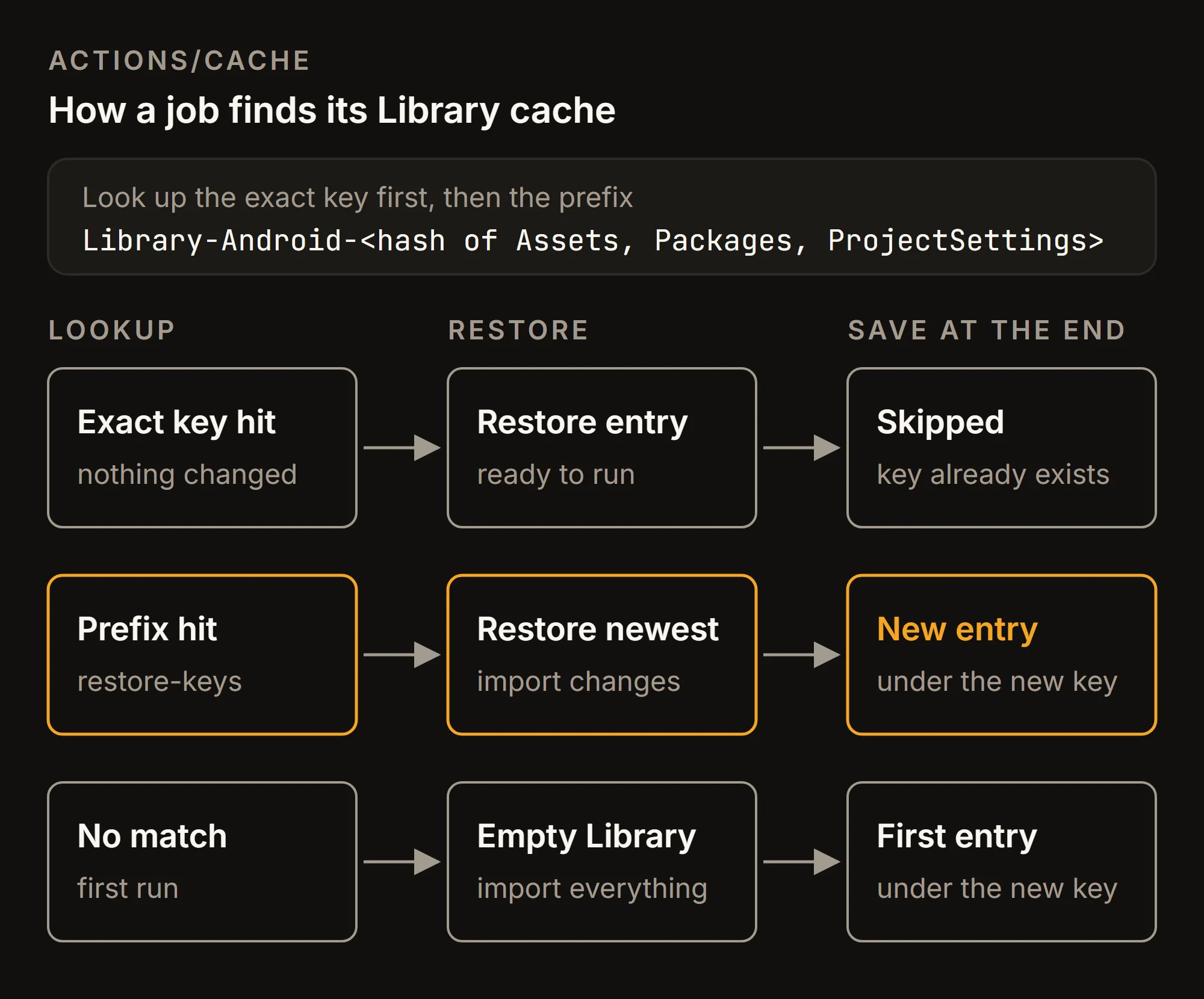
The key ends with a hash of Assets, Packages and ProjectSettings, so any project change produces a new key. GitHub's cache never overwrites an entry, so a run saves Library only when its exact key does not exist yet. When the exact key misses, restore-keys restores the most recent entry with that prefix. Unity then imports only what changed, and the job saves the result under the new key.
Three GitHub rules decide whether a run finds a cache at all:
- Scope. A run can restore caches from its own branch or tag and from the default branch. A pull request run saves its cache under the pull request, where no other pull request can see it. That is why the test workflow also runs on pushes to
main: those runs save the cache every new pull request starts from. - Tags. A run for one tag cannot restore a cache saved for another tag, so the
v1.4build cannot reuse thev1.3cache. Release builds hit the cache only when a run onmainhas saved aLibrary-Android-entry. Start the Android workflow once with Run workflow onmainto seed it. - Size and age. Each repository gets 10 GB of cache by default. Entries not accessed for 7 days are removed, and when the limit is reached, the least recently used entries go first. If you release less often than weekly, the seeded entry will usually be gone by the next tag. A weekly
scheduletrigger keeps it alive, because scheduled runs use the default branch, but each run costs a full Android build in runner minutes.
Checklist
- Secrets. Personal needs
UNITY_LICENSE,UNITY_EMAILandUNITY_PASSWORD. Pro replaces the license withUNITY_SERIAL. Android release builds add the four keystore secrets. - Unity version.
ProjectSettings/ProjectVersion.txtis committed, so GameCI uses the same Editor version as your team. - LFS. Every checkout sets
lfs: trueif the project uses Git LFS. - Keystore. Custom Keystore is enabled in Player Settings, and the keystore file is not in the repository.
- Required check. On
main, a branch protection rule requires the test job to pass before merging. For a private repository this needs a paid plan such as GitHub Pro or Team; on GitHub Free it works for public repositories. Keep job names unique across workflows, because duplicate names make required checks ambiguous. - Cache keys. Each workflow or platform has its own cache prefix. The Android prefix has an entry saved from
main, and the total stays under the 10 GB limit.
With these in place, every pull request shows whether the tests pass, and every release comes from a tag, built on a clean machine with the keys stored in GitHub rather than on someone's laptop.